


14 Effective Thanksgiving Marketing Ideas to Boost Your Sales in 2026
Discover creative Thanksgiving marketing ideas to engage customers, build buzz, and drive sales before Black Friday and Cyber Monday.
Discover the key differences between HubSpot and OptiMonk popups—and how using them together can help you double your subscriber list.
In short
Learn how to effectively use HubSpot and OptiMonk popup forms to double your subscriber list. While HubSpot offers basic popups, OptiMonk provides advanced features like personalized targeting and on-brand popups designed by an AI agent. By integrating both tools, you can enhance lead generation and conversion rates, creating a seamless experience for potential subscribers.
If you're using HubSpot popups but feel like they’re not converting as well as you’d like, you’re in the right place.
While HubSpot’s built-in popups are useful, they have limited customization and targeting options. That means you're missing out on potential subscribers simply because your popups aren’t optimized for different types of visitors.
But what if you could supercharge your lead generation by adding more engaging, highly targeted popups? That’s where OptiMonk comes in.
Let’s break down the difference between HubSpot popups and OptiMonk popups, and look at how you can combine both tools to double your subscriber list.
Here we go!
HubSpot's popup forms are basic but functional.
They allow you to choose from different form types, such as slide-ins, drop-down banners, or exit popups.
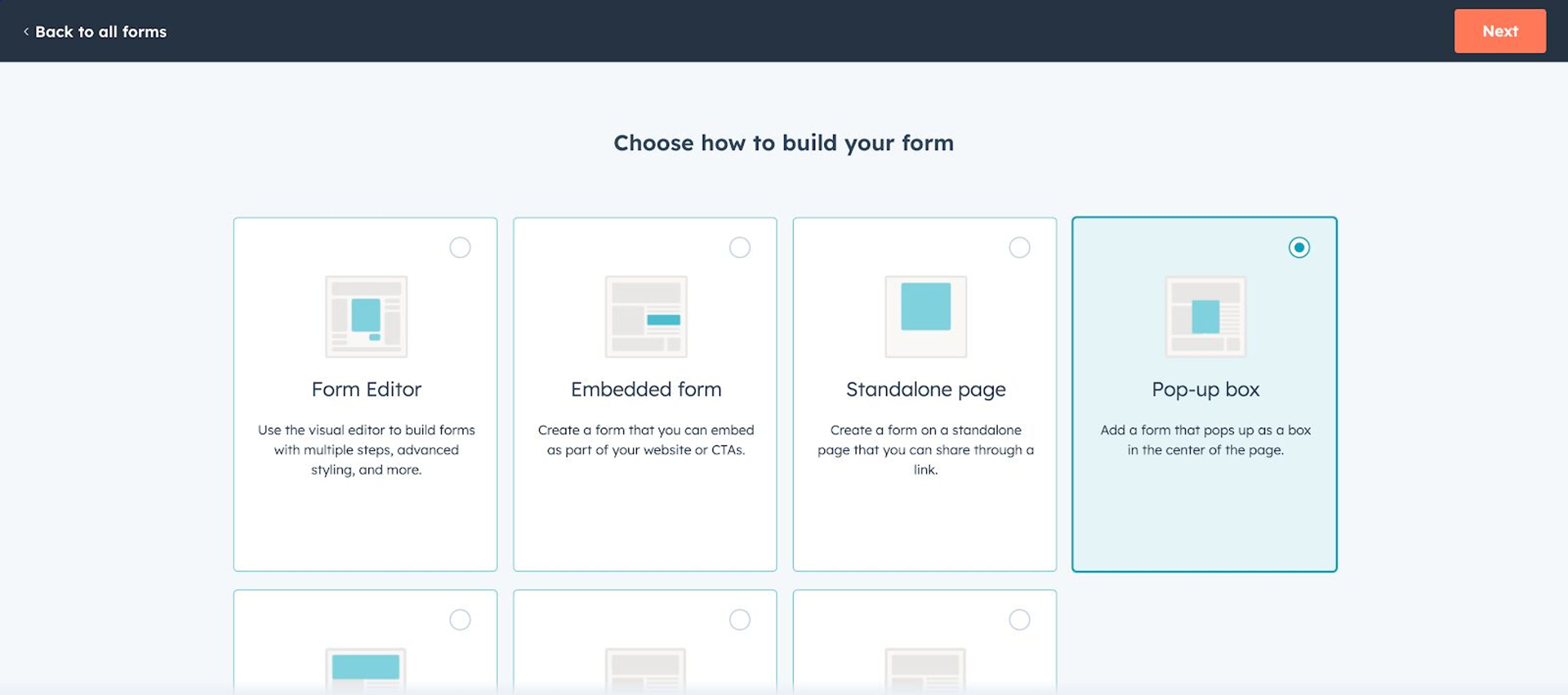
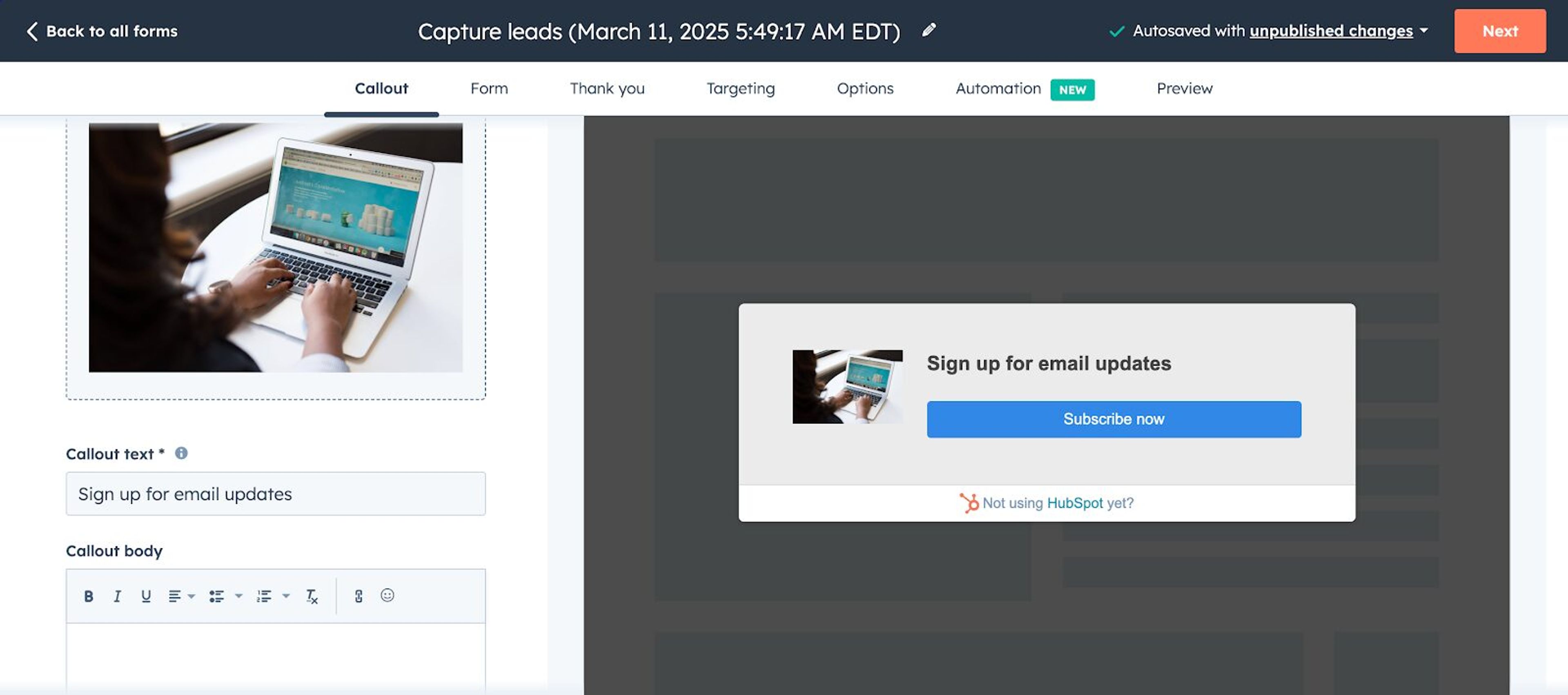
Then, you can customize your form using the drag-and-drop editor.
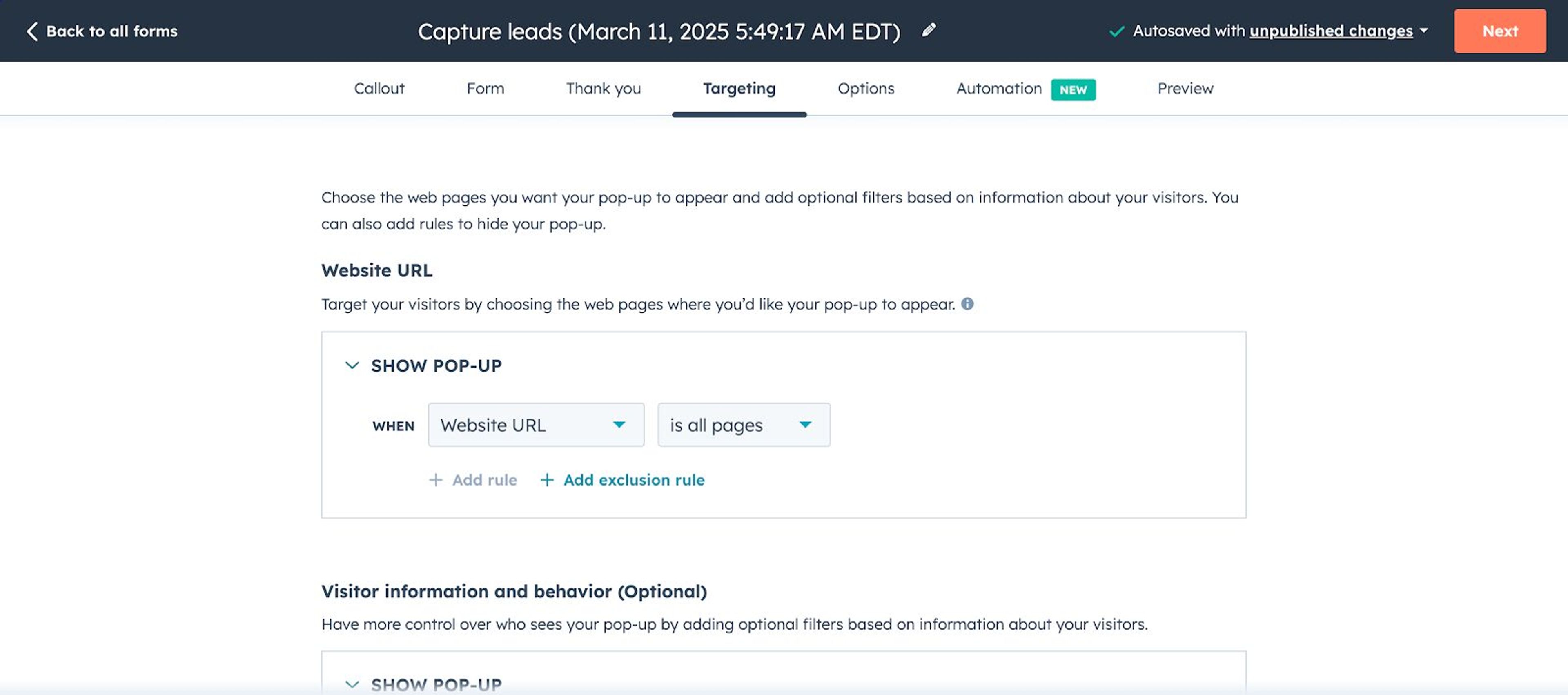
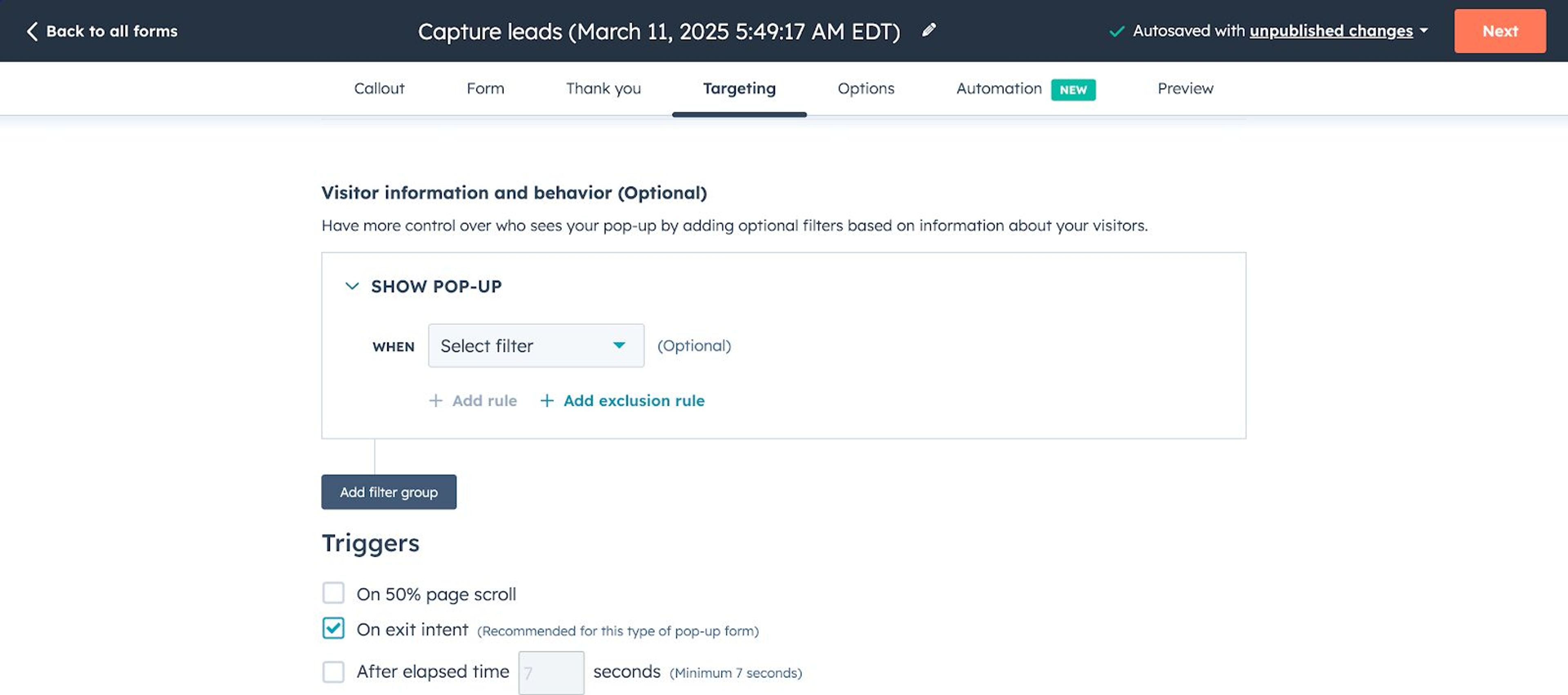
You can set up simple triggers, like displaying the popup form after a visitor spends a certain amount of time on a page.
However, there are a few drawbacks:
If you’re looking for a simple, no-frills lead capture form, HubSpot popups can do the job.
But if you want more engaging, targeted lead generation and advanced features, you’ll need something more advanced.
One of the biggest advantages of OptiMonk is its ability to target visitors at different stages of their journey.
Instead of showing the same generic message to everyone, you can deliver personalized popups based on user behavior, increasing the likelihood that they’ll subscribe to your HubSpot mailing list.
Plus, OptiMonk's AI agent designs each popup for your brand, and the Popup Library has 40+ use cases for inspiration.
Take a look at some of our most popular use cases, including discount popups, lucky wheels, product recommendation popups, and exit reminders.
You can choose the perfect format for your needs, whether you want classic popups, fullscreen popups, or gamified popups, providing the flexibility to design an experience that best suits your audience.
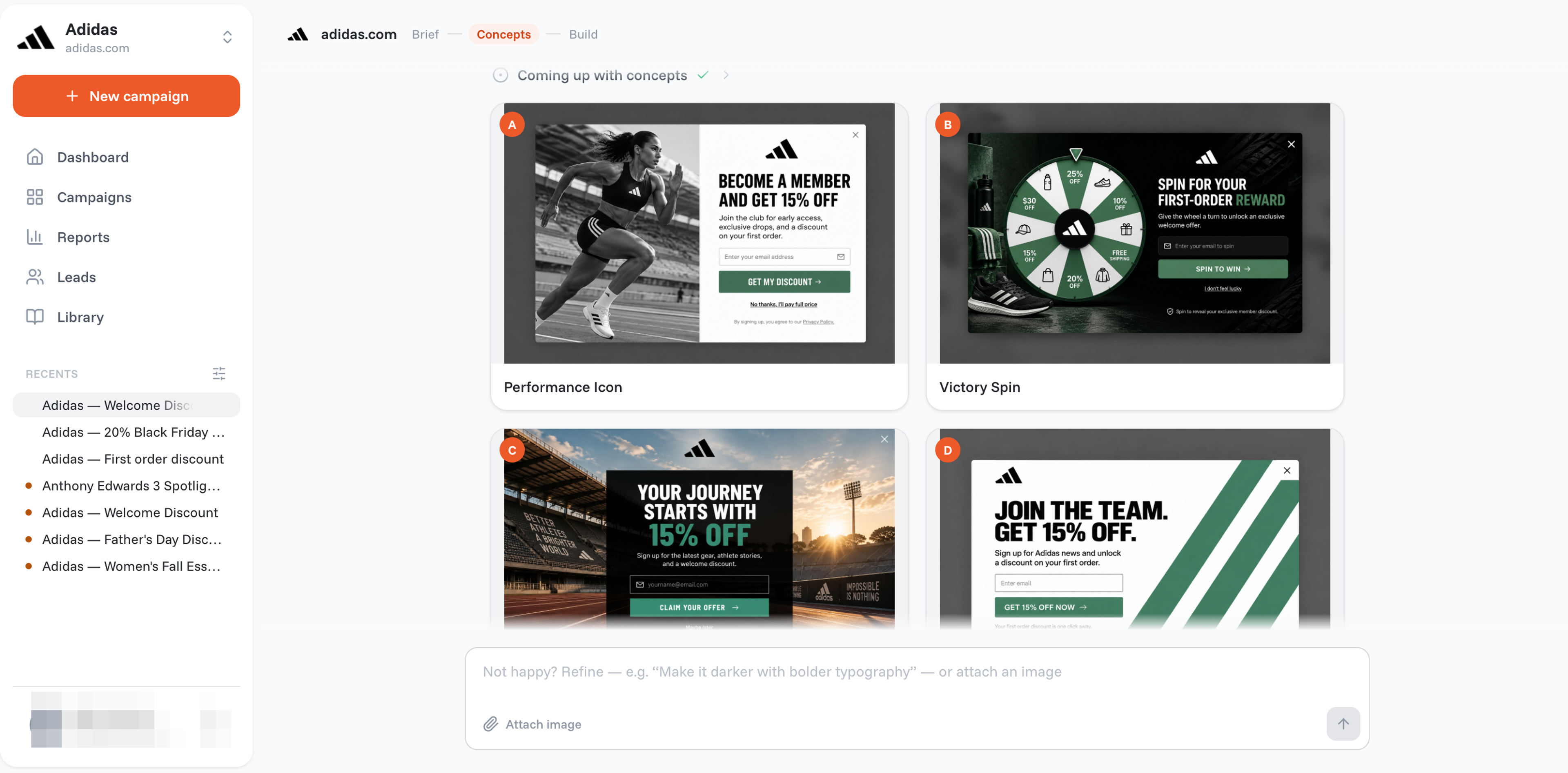
The first step is to describe your popup to the agent, then fine-tune the concept you pick to match your brand's style and messaging.
OptiMonk lets you change fonts, colors, text, and images by asking the agent in plain words or in the visual editor.
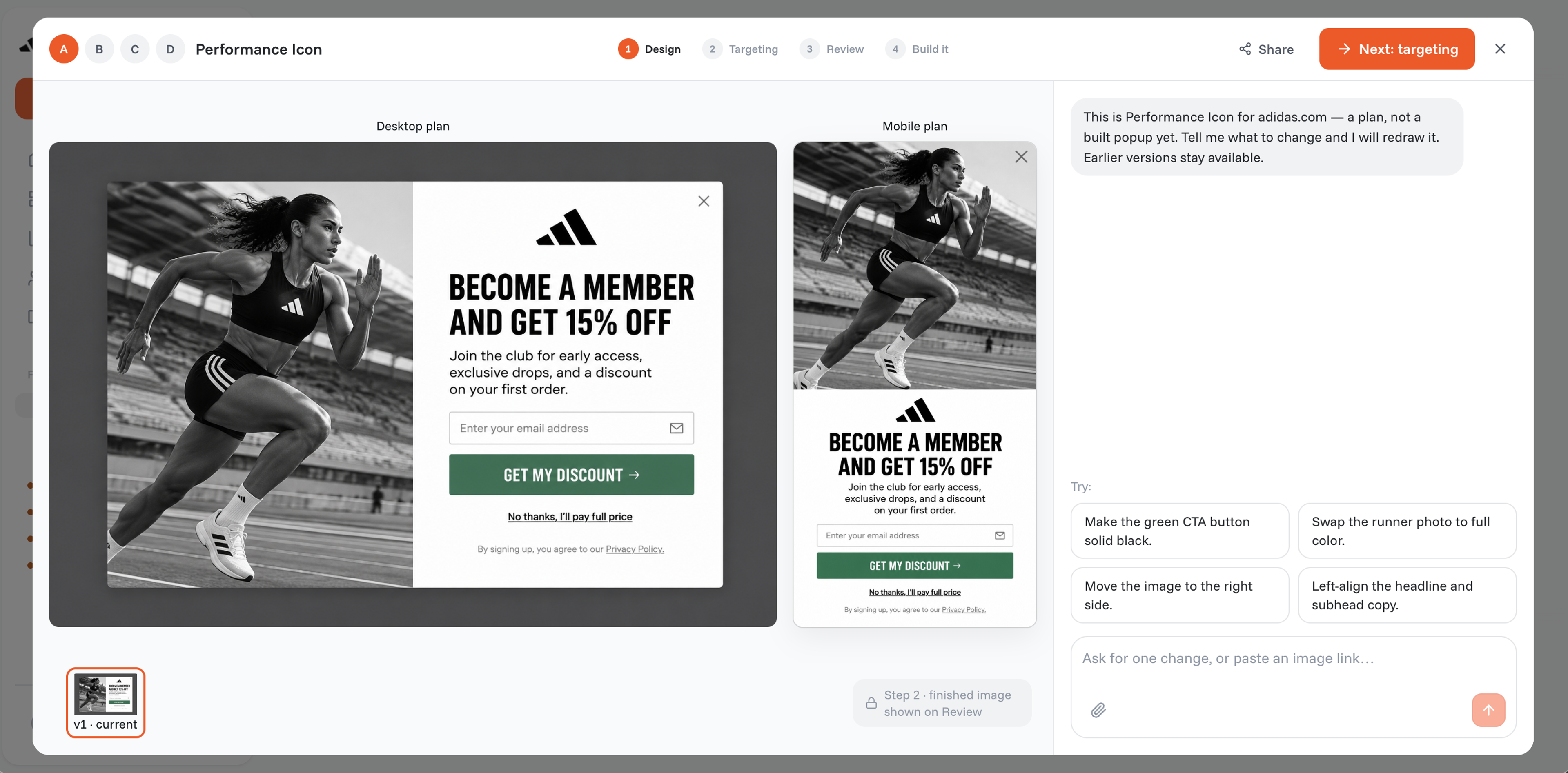
Every popup also gets a separate mobile version, so it looks great and works smoothly on any device.
Once your design is ready, the next step is to determine when and where your popup should appear.
OptiMonk provides a variety of triggering options, so you can display popups at precisely the right moment:
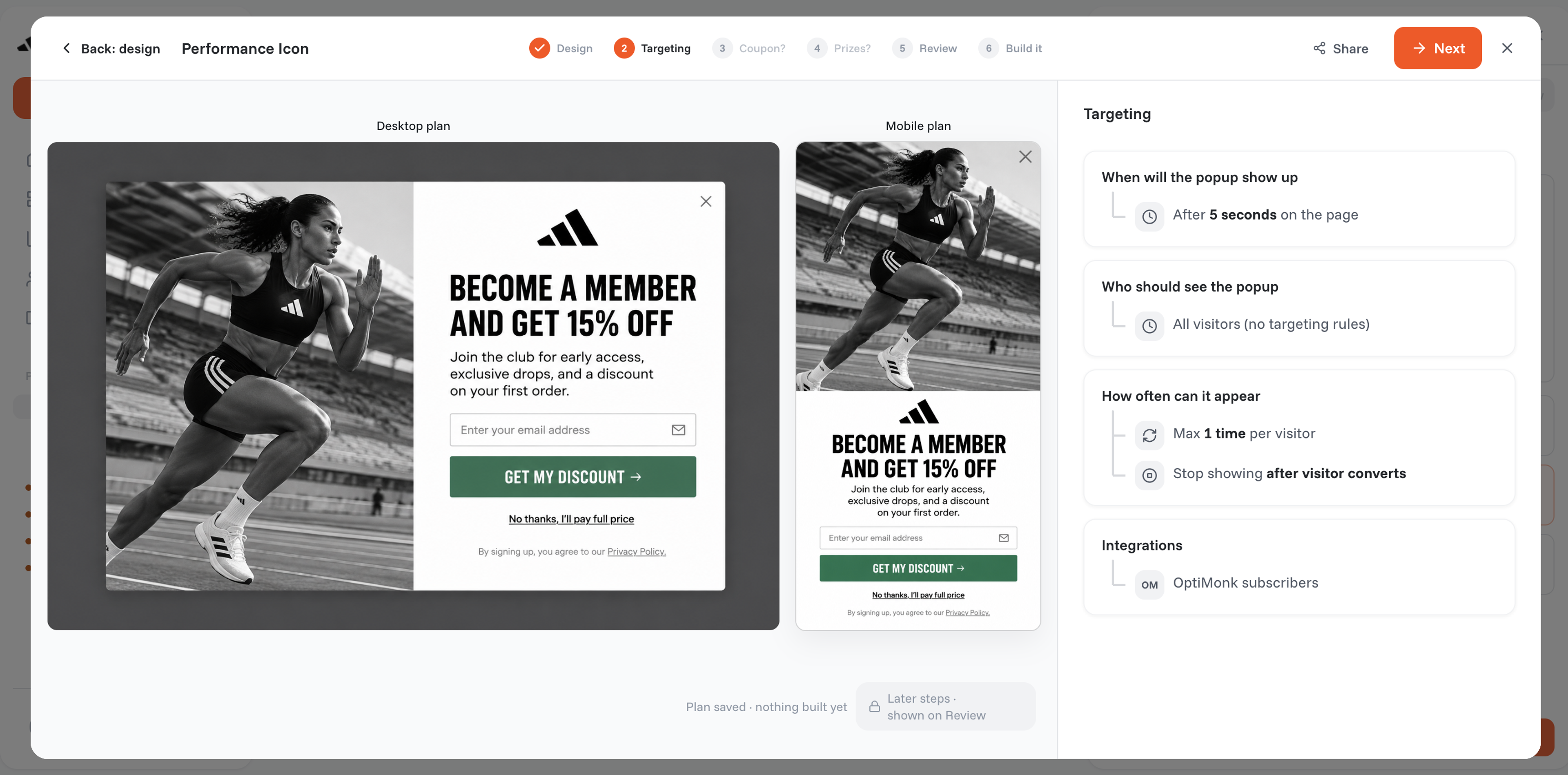
Beyond triggers, OptiMonk allows you to fine-tune your targeting, which ensures the right visitors see the right message.
You can target new or returning visitors, shoppers with items in their cart, subscribers, and visitors from specific traffic sources or countries, making your popups more relevant and effective.
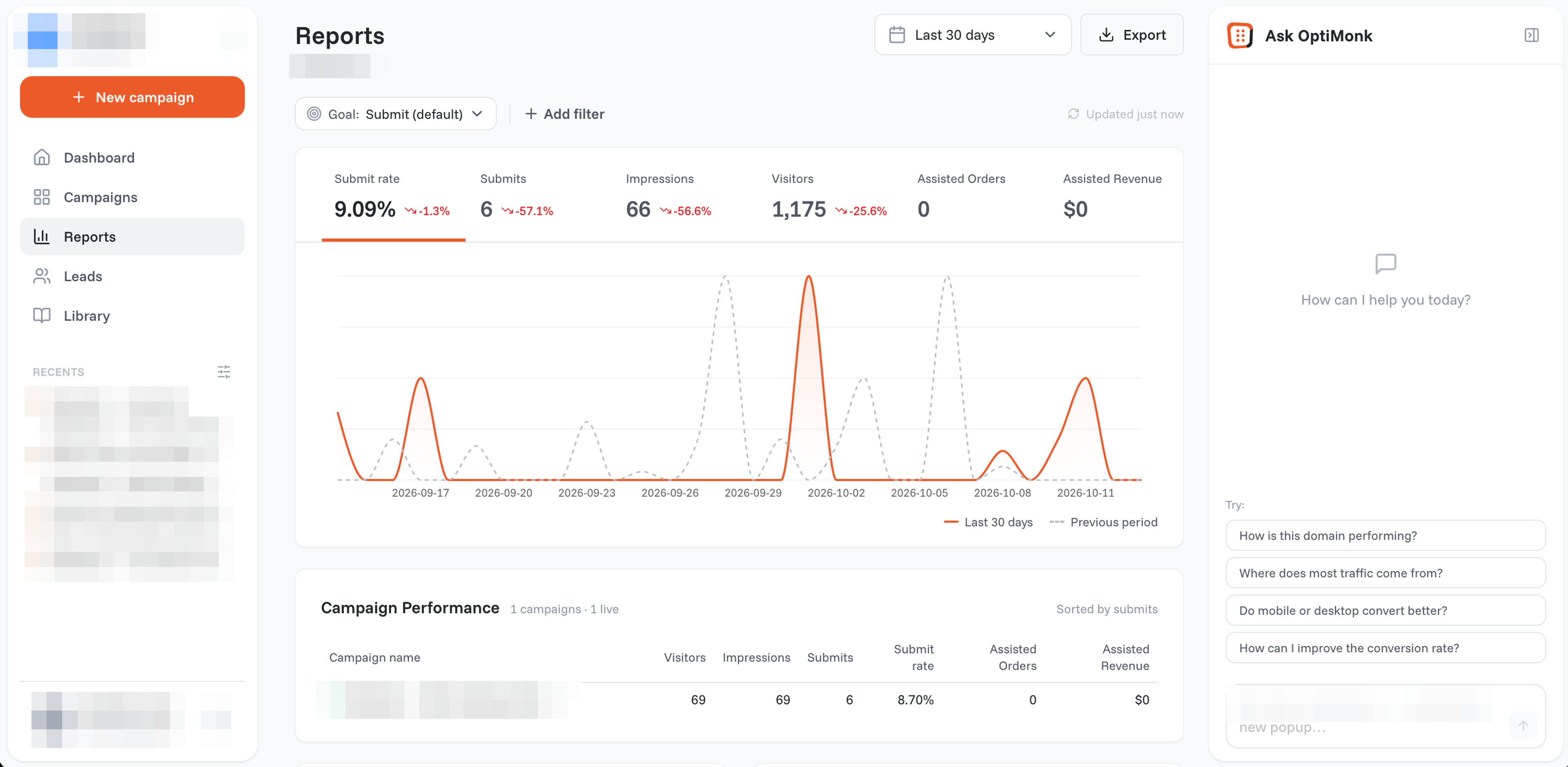
OptiMonk doesn’t just help you create high-converting popups—it also provides detailed campaign analytics to track performance.
While both HubSpot forms and OptiMonk popups help capture leads, there’s a big difference in the level of personalization and targeting they offer.
HubSpot is a comprehensive marketing platform, offering a wide range of tools, including CRM, email marketing, and automation.
However, its popup builder is limited when it comes to customization, behavioral targeting, and trigger options.
HubSpot popups tend to be static and generic, showing the same message to all visitors, which is a significant disadvantage.
OptiMonk, on the other hand, is a dedicated popup tool, designed specifically to help businesses create highly engaging and personalized popups with advanced features.
That said, you don’t have to choose between the two.
By combining OptiMonk’s popup capabilities with HubSpot’s powerful email marketing and CRM tools, you can create a seamless lead capture and nurturing process.
OptiMonk helps you collect more leads, while HubSpot helps you manage and convert them into loyal customers.
Let’s walk through the process of connecting OptiMonk with HubSpot to maximize your reach and streamline lead generation.
If you haven’t already, start by creating a free OptiMonk account and logging in.
Once inside, open Campaigns in the left menu and click the campaign you want to connect with HubSpot.
Next, open the campaign's Integrations tab.
Click "Add integration".
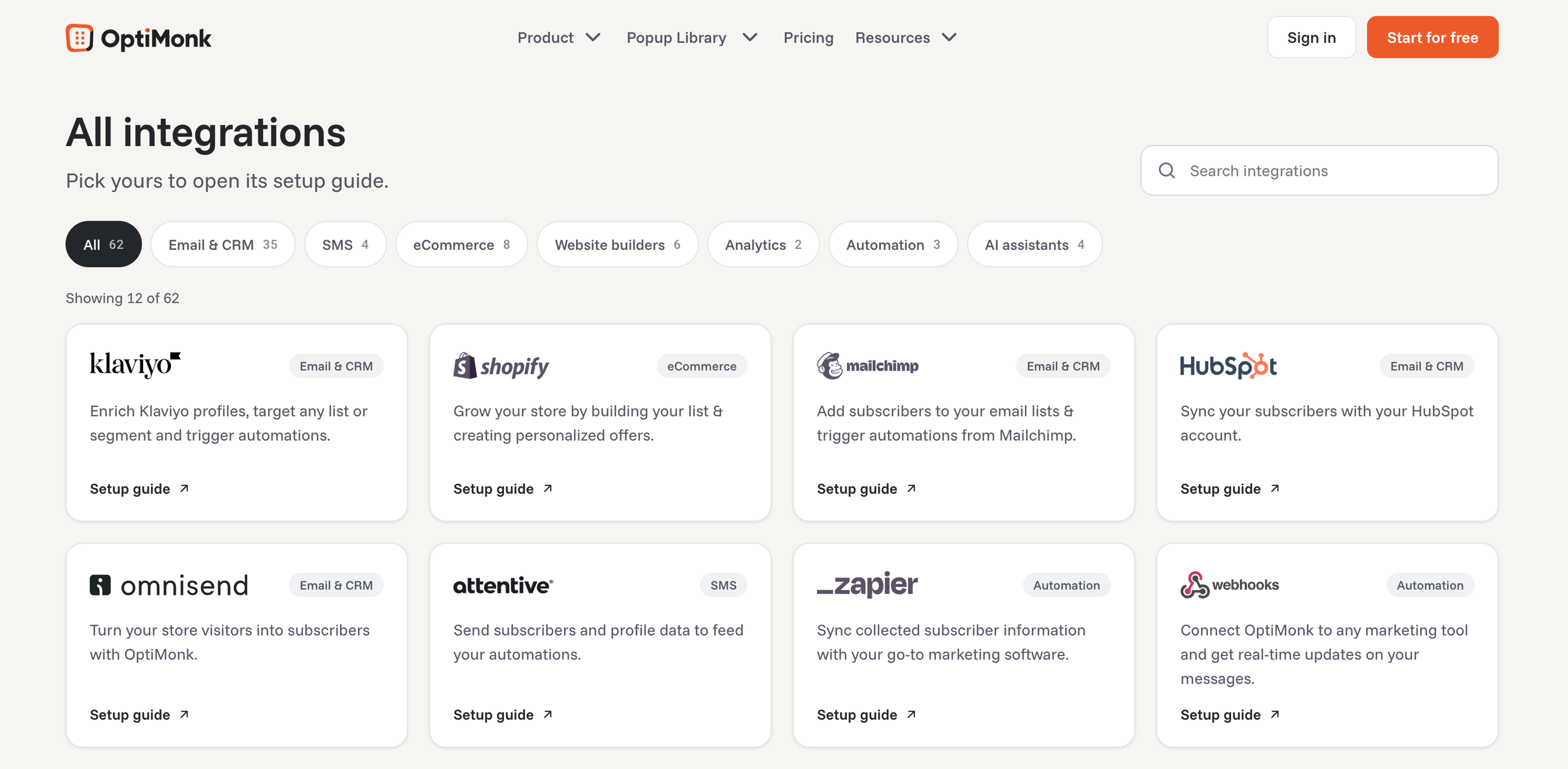
From the list of providers, select HubSpot V2.
Click "Continue with HubSpot V2", which will redirect you to HubSpot.
There, select the HubSpot account you want to link with OptiMonk, click "Choose Account", then "Connect app".
Back in OptiMonk, pick the HubSpot list new signups should join, check the field mapping, and click "Save integration".
If you need a more detailed step-by-step walkthrough, be sure to check out this guide.
Whether you're using an OptiMonk popup form or a HubSpot form, following a few best practices can significantly improve your lead generation and conversion rates.
Here are some essential tips to ensure your popups are effective, engaging, and non-intrusive.
A popup should provide clear value to your visitors. Whether it's a discount, exclusive content, a free resource, or early access, the offer needs to be compelling enough to encourage sign-ups.
Just look at Nexus Nutrition: their mystery discount pop-up netted them close to 700 new email subscribers in a month. Here's what their form looked like:
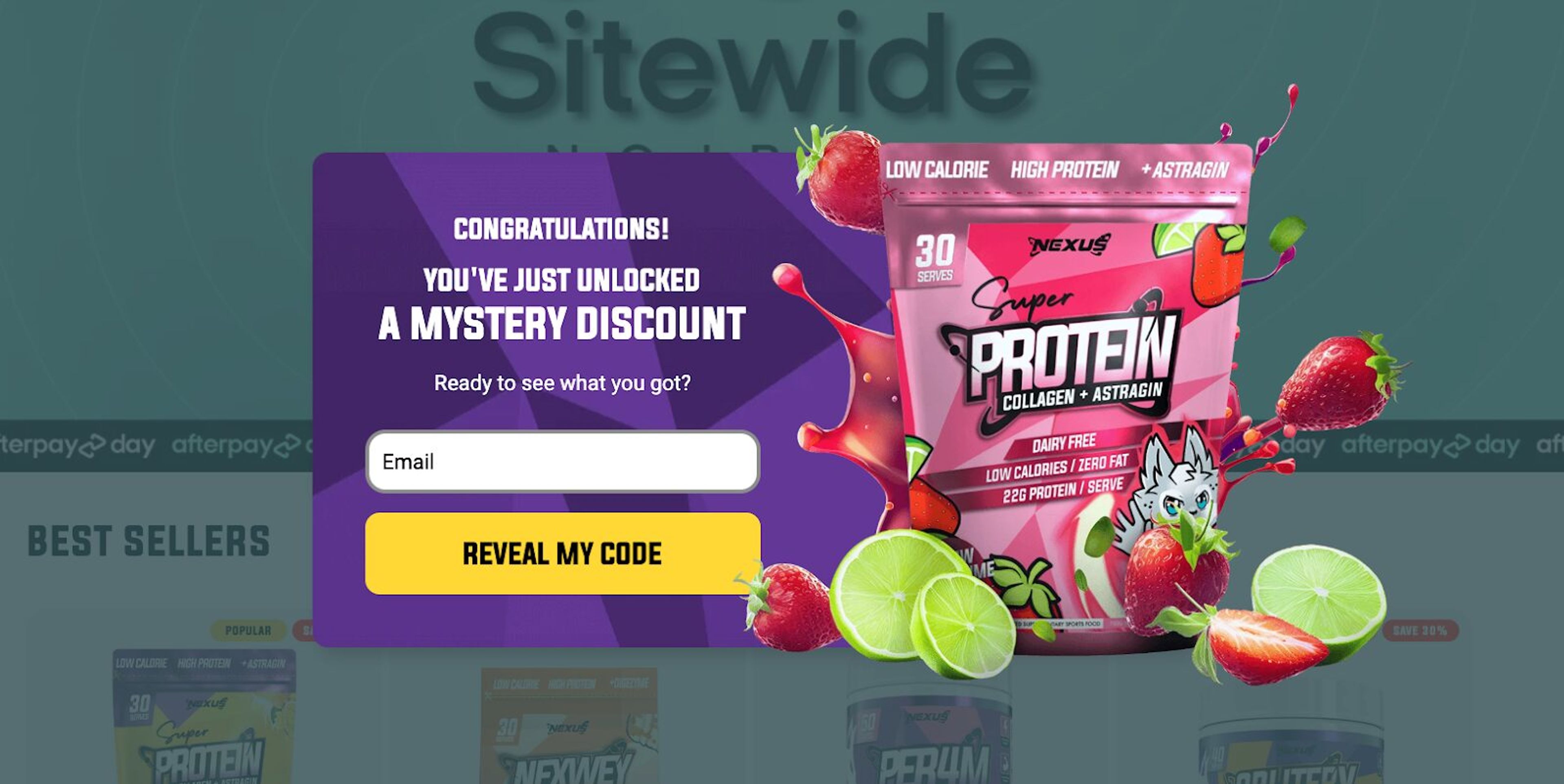
Instead of using generic text like "Subscribe to our newsletter," try something more enticing, such as "Unlock 10% off your first purchase – Sign up now!” oran enticing mystery discount offer.
A well-designed pop-up form should blend seamlessly with your website’s look and feel. Use:
Avoid cluttered designs that overwhelm visitors—simplicity converts better.
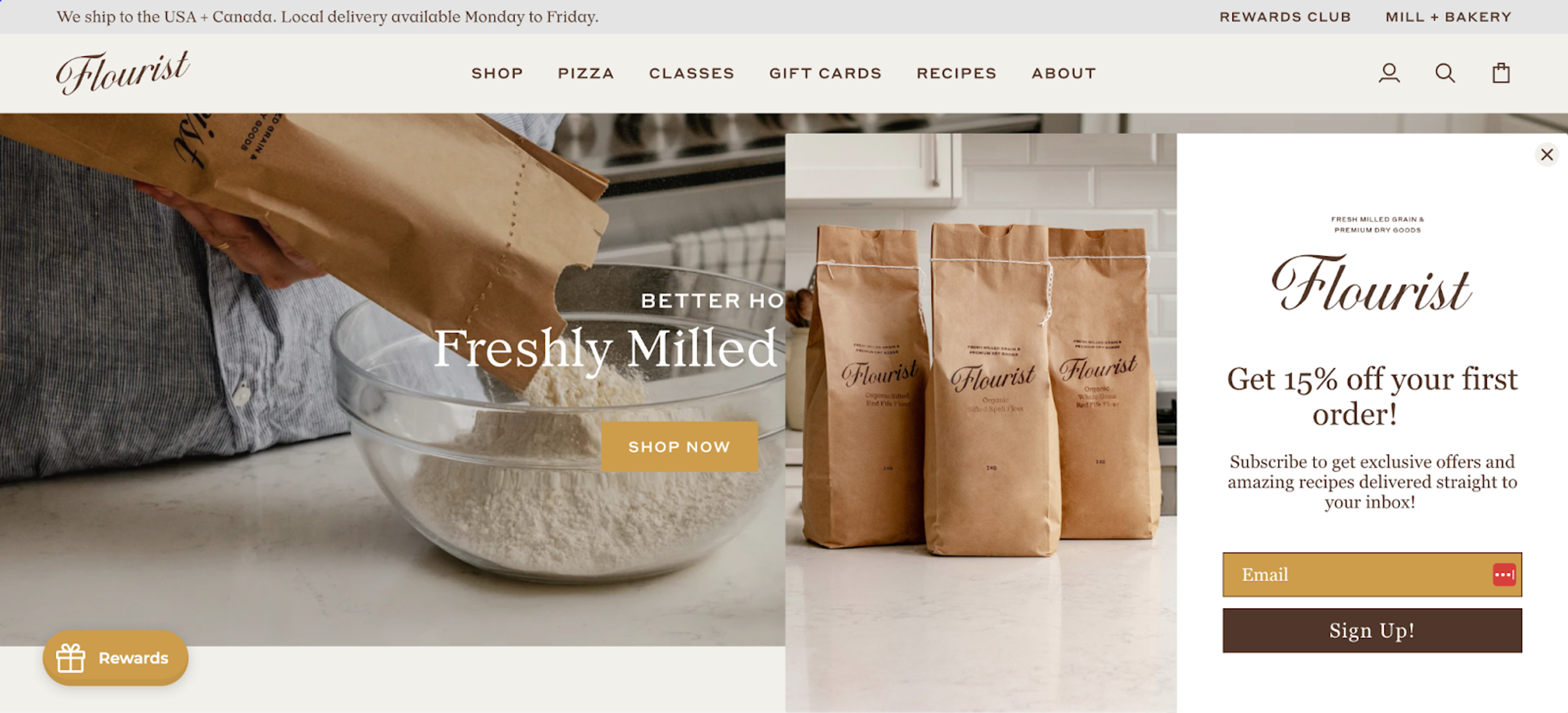
See how Flourist achieves this clarity in their popup.
One-size-fits-all messaging no longer works. OptiMonk enables you to personalize popups based on visitor behavior.
Rather than displaying the same message to everyone, customize your popups for:
Personalization makes your popups feel more relevant and boosts conversion rates.
Recommended reading: The Ultimate Guide to Website Personalization
With such a large percentage of visitors coming from mobile devices, your popup forms have to be responsive and user-friendly on smaller screens. OptiMonk allows you to create mobile-specific lead capture forms to ensure a seamless experience.
Sassy Scents provides a great example:

Make sure buttons are easy to tap, text is readable, and the popup form doesn’t take over the entire screen.
Not sure which popup design or message will perform best? A/B testing allows you to compare different variations to see what works.
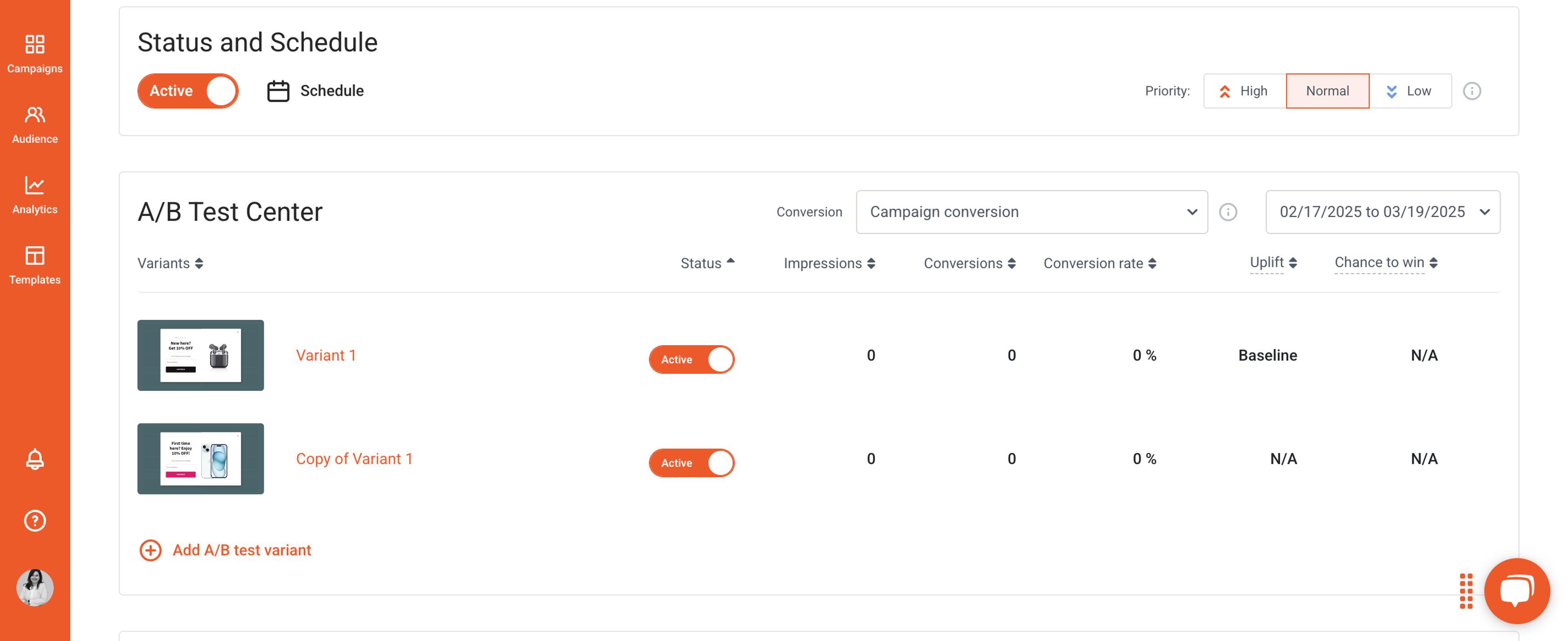
Test elements like:
By continuously testing and optimizing, you can increase conversions and improve the effectiveness of your popups.
OptiMonk provides detailed campaign analytics, allowing you to track:
Use these insights to refine your strategy and make data-driven decisions to improve your pop-up form.
No, OptiMonk’s popups are lightweight and optimized for fast performance. The script runs efficiently in the background, ensuring that your website loads quickly while still displaying high-converting popup forms at the right time.
Not at all! Both OptiMonk and HubSpot are designed to be user-friendly and require no coding skills. In OptiMonk, you describe the popup you want and the AI agent builds it, and the integration with HubSpot takes just a few clicks.
Absolutely! OptiMonk’s popups are fully mobile-optimized, ensuring a great experience for visitors on smartphones and tablets.
You can also customize mobile popups separately to make sure they fit smaller screens perfectly, improving user experience and engagement.
If you want to double your subscriber list, you’re going to need more than a basic HubSpot popup. OptiMonk’s advanced personalization, targeting, and variety of popup styles allow you to create highly engaging lead capture forms that actually convert.
And the best part? You don’t have to choose between HubSpot and OptiMonk—you can use both together! By integrating OptiMonk with HubSpot, you can collect more leads, nurture them through HubSpot emails, and grow your business faster.
Ready to get started? Try OptiMonk for free and watch your subscriber list grow!


Discover creative Thanksgiving marketing ideas to engage customers, build buzz, and drive sales before Black Friday and Cyber Monday.
Learn 5 ways ecommerce brands can turn new subscribers into recurring revenue using welcome flows, personalization, loyalty programs, re-engagement, and referrals.

In this article, we’ve compiled a list of the 25 top ecommerce apps that will help you streamline your operations, boost sales, and grow your online business.