


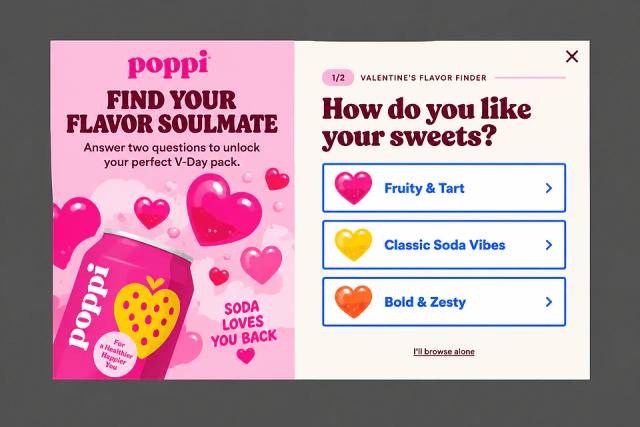
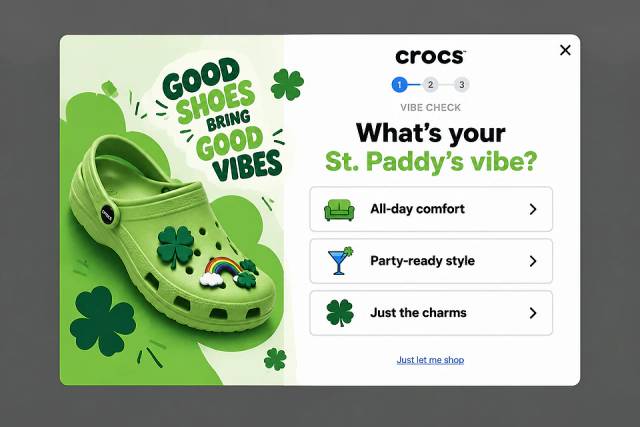
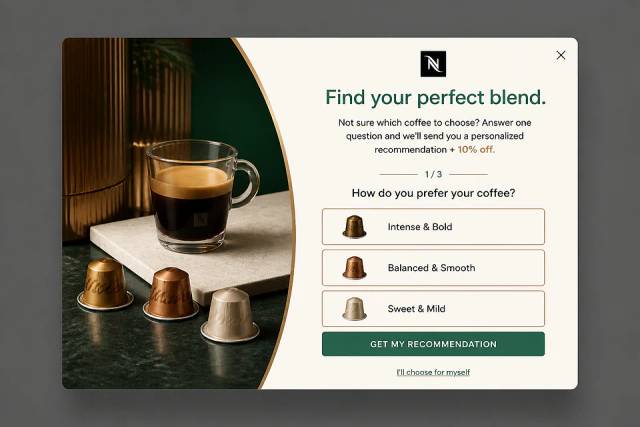

40 Welcome Message Examples for Your Website (Copy and Paste)
40 website welcome message examples for online stores, grouped by situation and industry, ready to copy into a welcome popup.
In this post, we'll show you all the steps you need to follow to add a popup to your Shopify store using OptiMonk.
In short
Learn how to effectively add popups to your Shopify store in 2026 with this step-by-step guide. Discover how using OptiMonk, a powerful Shopify app, can enhance your conversion rate and grow your email list. This guide covers everything from installation to customization, ensuring your popups align with your brand and target the right audience for maximum impact.
Popups can bring a lot of value to any online store. Whether you want to build your email list, save cart abandoners, or improve the conversion rate of your Shopify store, pop-ups are a great way to accomplish those goals.
To add a popup to your Shopify store, you’ll need to use a plugin from the Shopify App Store.
Our recommendation? OptiMonk, a free app that boasts some of the most powerful popups available for your Shopify website.
In this post, we’ll show you all the steps you need to follow to create popups for your Shopify store using OptiMonk.
Let’s get started!
The sheer variety of different campaigns you can create using OptiMonk is stunning. With so many different kinds of popups (allowing you to collect customer information, deliver coupon codes, reduce cart abandonment, and more) we can’t possibly cover them all here.
Instead, we’ll go over how to add a simple list building pop-up so you get a hang for how it works.
Click here or search for OptiMonk in the Shopify App Store. Then click the “Install” button:
If you’re already logged in to your Shopify account, the installation process just takes a few more clicks.
After you click "Install", OptiMonk creates your account using the details from your Shopify store.
When that's done, you're ready to start working on your first popup for your store!
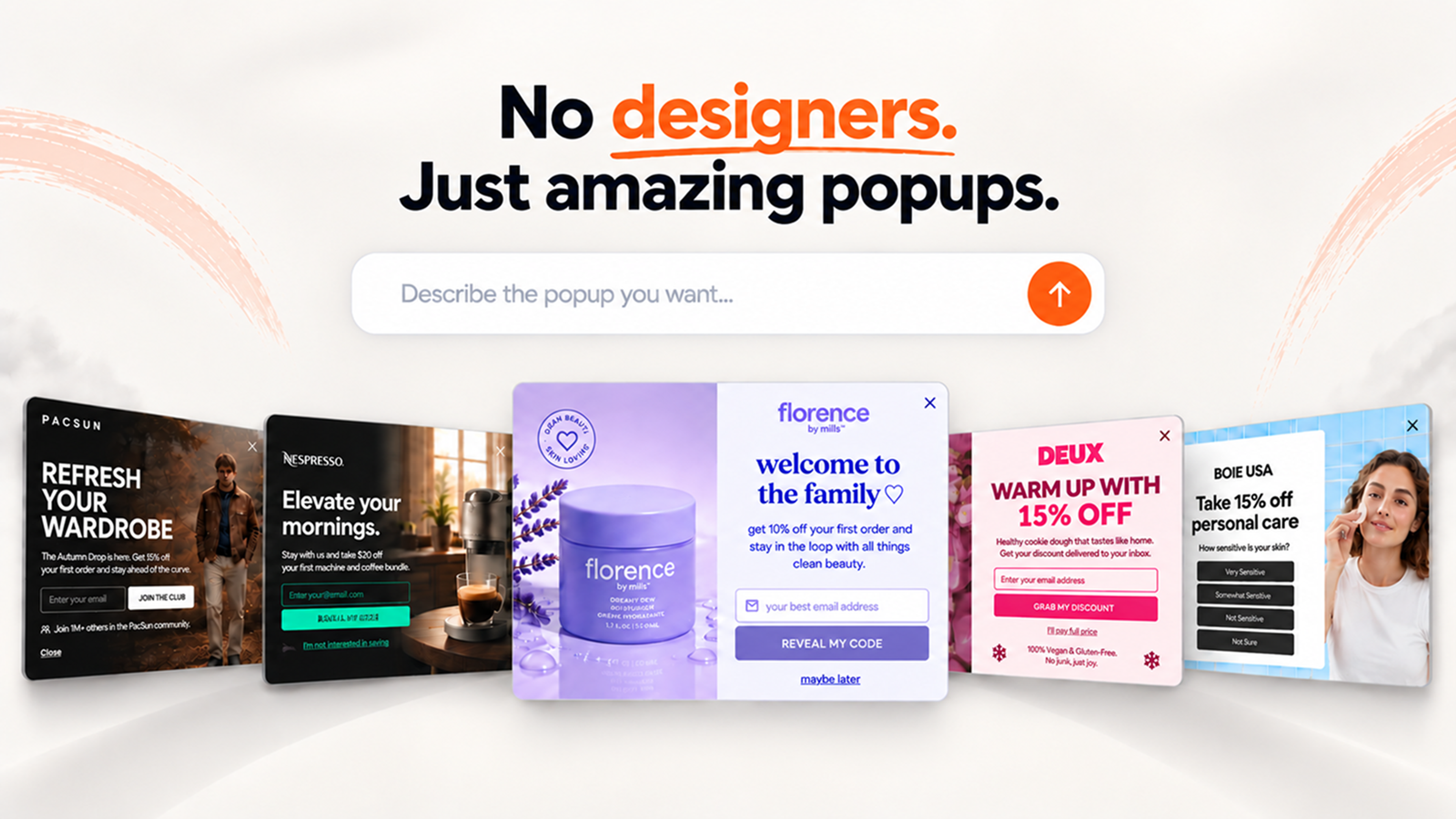
In OptiMonk, click "New campaign" and describe the popup you want, for example "a popup that collects phone numbers for SMS, with 10% off".
The agent asks a few questions about your store and your offer, then draws four concepts in your brand's colors, fonts and logo.
It's worth trying different popup types, such as signup forms, lucky wheels, fullscreen popups and surveys, to keep things interesting for both your business and your customers.
In this case, we're asking for a popup that collects phone numbers from Shopify customers.
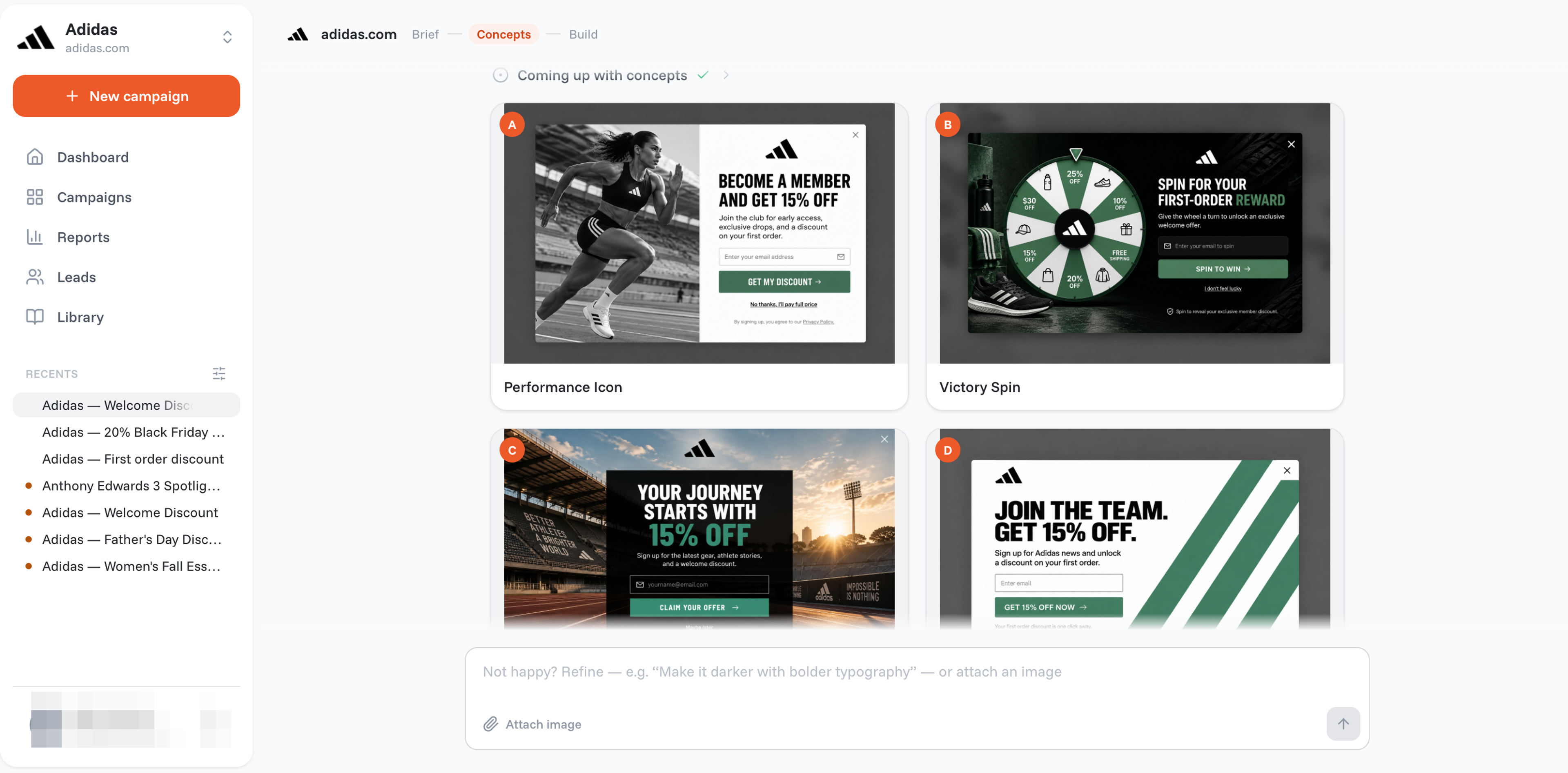
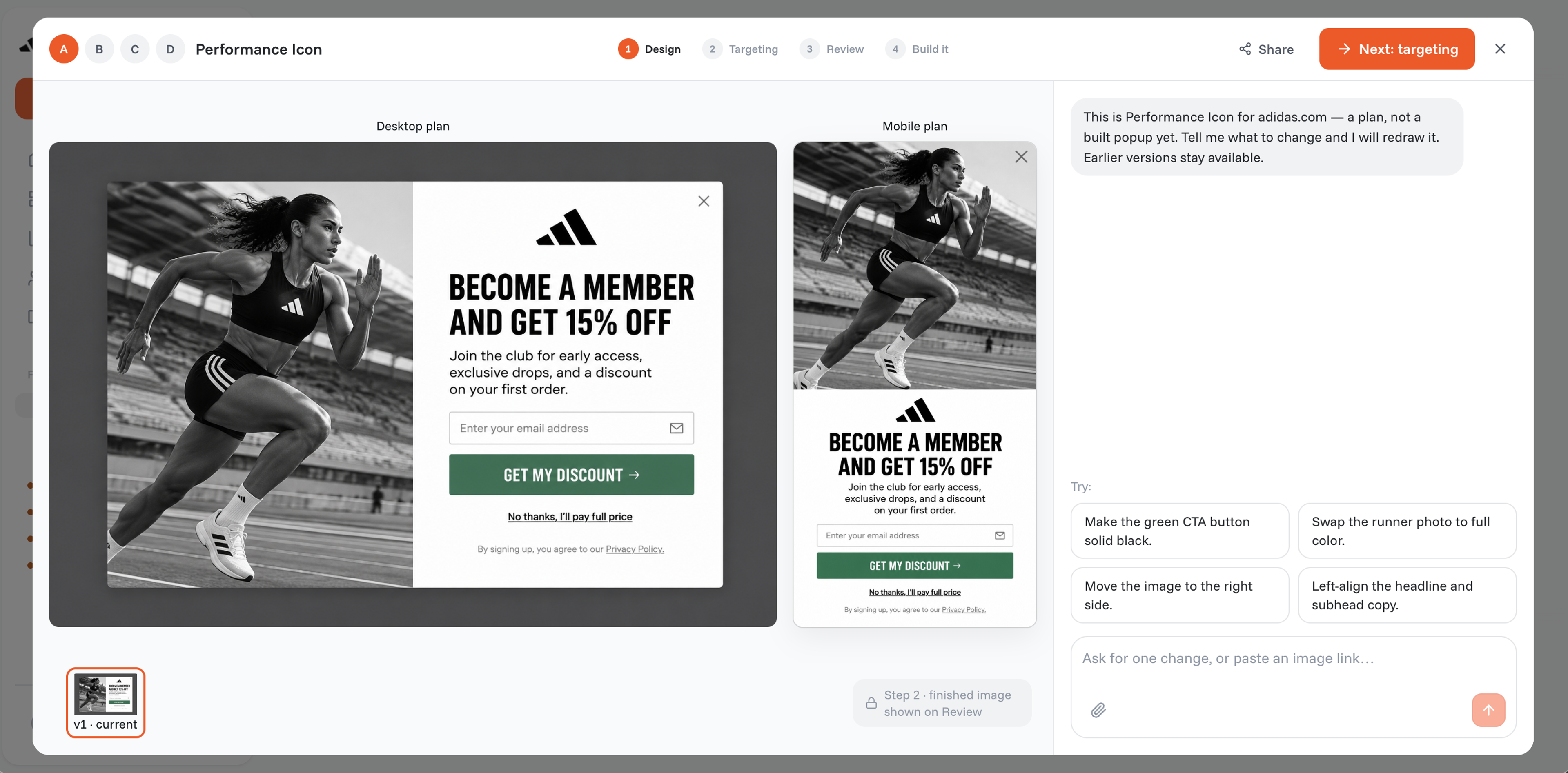
Pick the concept you like. To change anything, tell the agent what should be different, or open the visual editor.
The agent already matches the look and feel of your Shopify store and writes the copy, and it builds a separate mobile version too.
In the visual editor, click any part of the popup to edit it by hand. Popups can also carry countdown timers, coupons and products.
Next, you’ll choose your display conditions, which are the settings that control which customers see your popup and when.
For example, you might decide to use exit-intent technology, which allows you to display popups when a visitor is just about to exit your website. Exit-intent popups are effective for capturing signups and adding qualified traffic to your email or SMS lists.
You can also choose a time-based or scroll-based trigger that causes your popups to appear after a certain amount of time has passed or after the visitor has scrolled down a certain percentage of a web page.
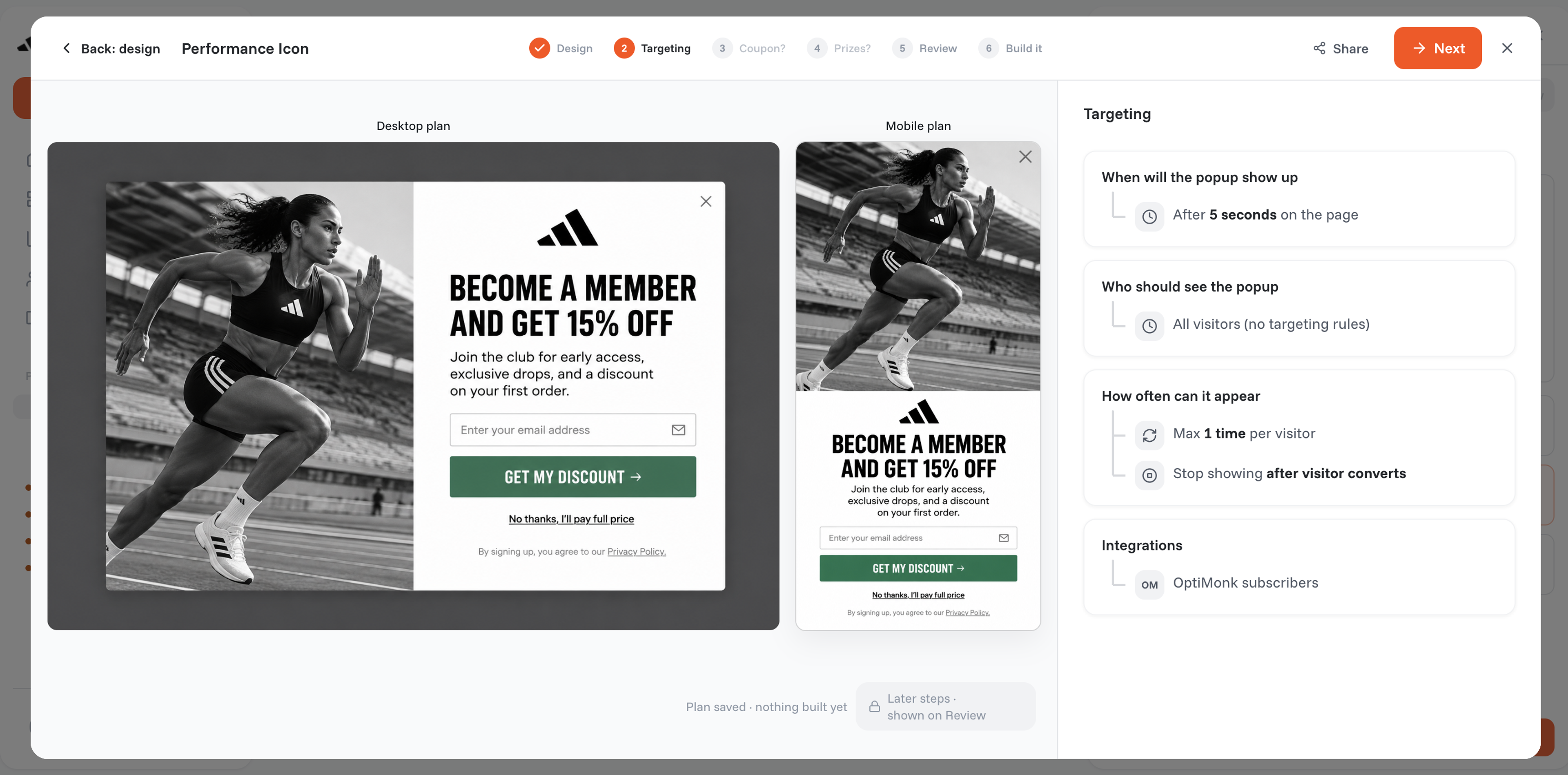
When it comes to targeting options, you have lots of options to personalize your messages for specific segments of your visitors.
This means you’ll never have to show the same generic message to all your visitors, which could annoy them.
After you’ve adjusted these settings, you can set up your integrations.
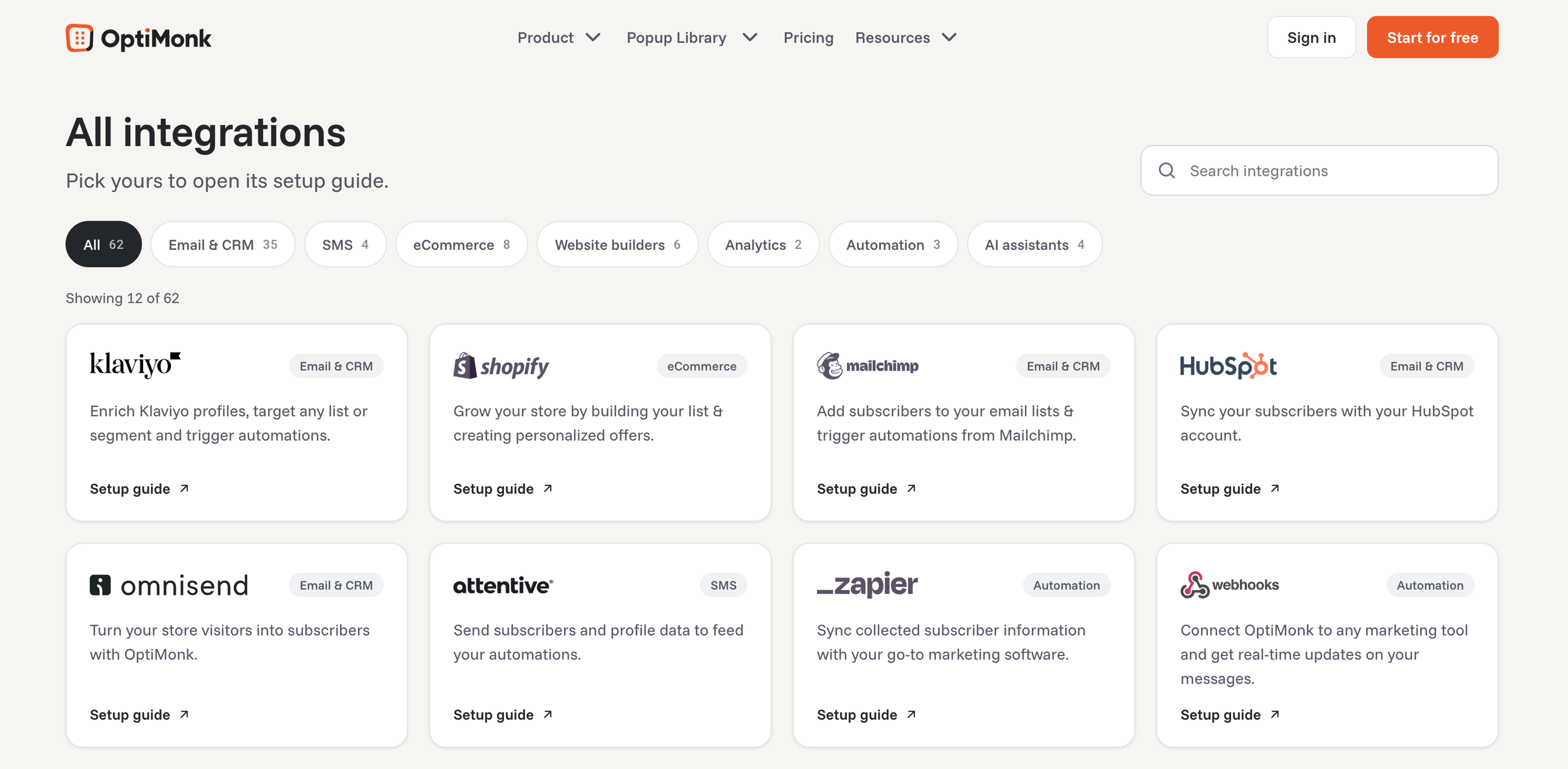
OptiMonk integrates with many of the most popular ecommerce apps and services. These include CRM managers like HubSpot, email marketing platforms like Klaviyo and MailChimp, and many others.
When you're satisfied with your popup, click "Build it", then switch the campaign on to display the popup on your Shopify store.
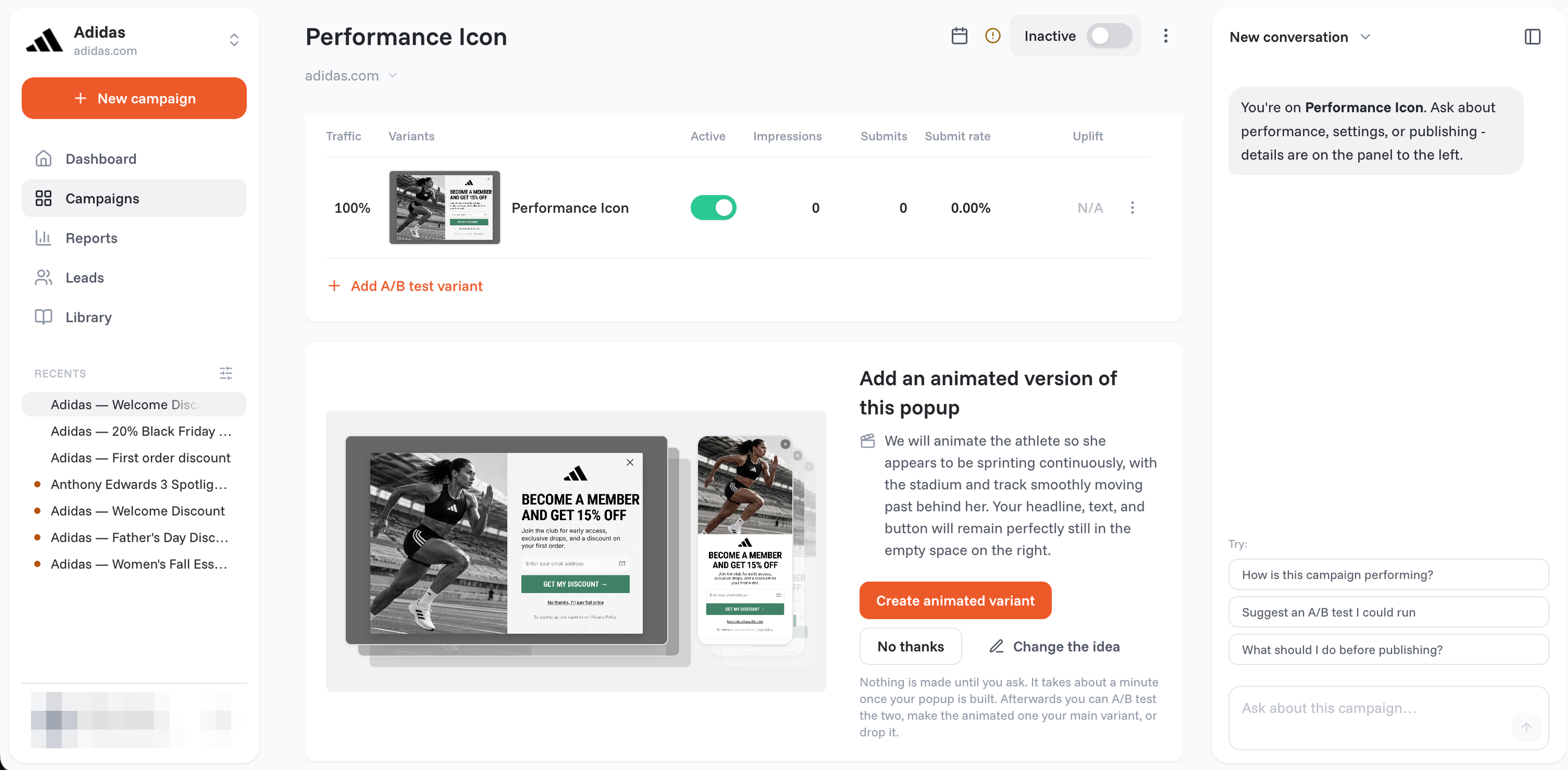
And just like that, you’ll have added your very first popup to your Shopify store!
You can create a popup using Shopify apps like OptiMonk, Privy, or WisePops. These apps provide user-friendly interfaces and templates to design and customize your popup forms easily.
Offering discounts, coupons, or exclusive content can attract visitors. A common and effective strategy is providing a percentage off on the first purchase in exchange for an email signup.
Customize your popup design by matching the colors, fonts, and overall style with your brand's aesthetic. Most popup apps offer drag-and-drop features and design tools to help you align the popup with your brand.
Display your popup based on user behavior, such as after a certain amount of time on the site, when a visitor shows exit intent, or when they reach a specific page. Tailoring the trigger can improve customer engagement and conversion rates.
Ensure your pop-ups are mobile-responsive. Use a simple design with clear text and large buttons to make it easy for mobile users to engage. Test on different mobile devices to fine-tune the mobile experience.
There you have it: all the information you need to create your first popup campaign!
As you can see, creating popups for your Shopify store with OptiMonk is quick: describe it, pick a concept, set the targeting and switch it on. Once you've made your first campaign, there's nothing stopping you from making a second, third, fourth and so on.
Before you know it, you’ll have a suite of popups running on your Shopify store, allowing you to do everything from collecting feedback to promoting your special sales.
Ready to get started? Take the first step and create your first popup campaign today!
You can get started with these popup ideas:

40 website welcome message examples for online stores, grouped by situation and industry, ready to copy into a welcome popup.
12 Christmas popup examples for online stores, from welcome offers and spin-to-win wheels to gift quizzes and last-chance countdowns.
In this article, we'll share the best alternatives to Sleeknote that help you to get more leads in 2026.