Expected results
Difficulty
Intermediate
Industry
Ecommerce
Goals
Increase sales, Boost conversions
When to use it?
International shipping can raise lots of questions for your customers: Do you ship to every country? How much does it cost? What’s the delivery time? Is free shipping available?
If you don’t answer these questions, customers may decide to leave your store without buying. So if you want to increase the conversion rate of international visitors, setting up personalized shipping bars for each country is a great idea.
And if you don’t have the same shipping conditions for every country, don’t worry, you can easily personalize the message based on the visitor’s location.
How to set it up?
Step 0: Check the top locations where your visitors are coming from
Go to your Google Analytics account, and go to Audience / Geo / Location so that you will see where your visitors are coming from. Choose as many countries as many campaign variants you would like to create.
To demonstrate this tactic, we will go on with the top two countries on the list, the USA and Canada.

Step 1: Create a sticky bar and fine-tune it to your style
This will be your default variant. You can find all of our sticky bar templates below.

Step 2: Create a new Personalized Experience
If you want to learn more about Personalized Experiences, click here.

Add a new variant to Experience B and Experience C. Your original campaign (default variant) is in Experience A.

Step 3: Personalize your new variants
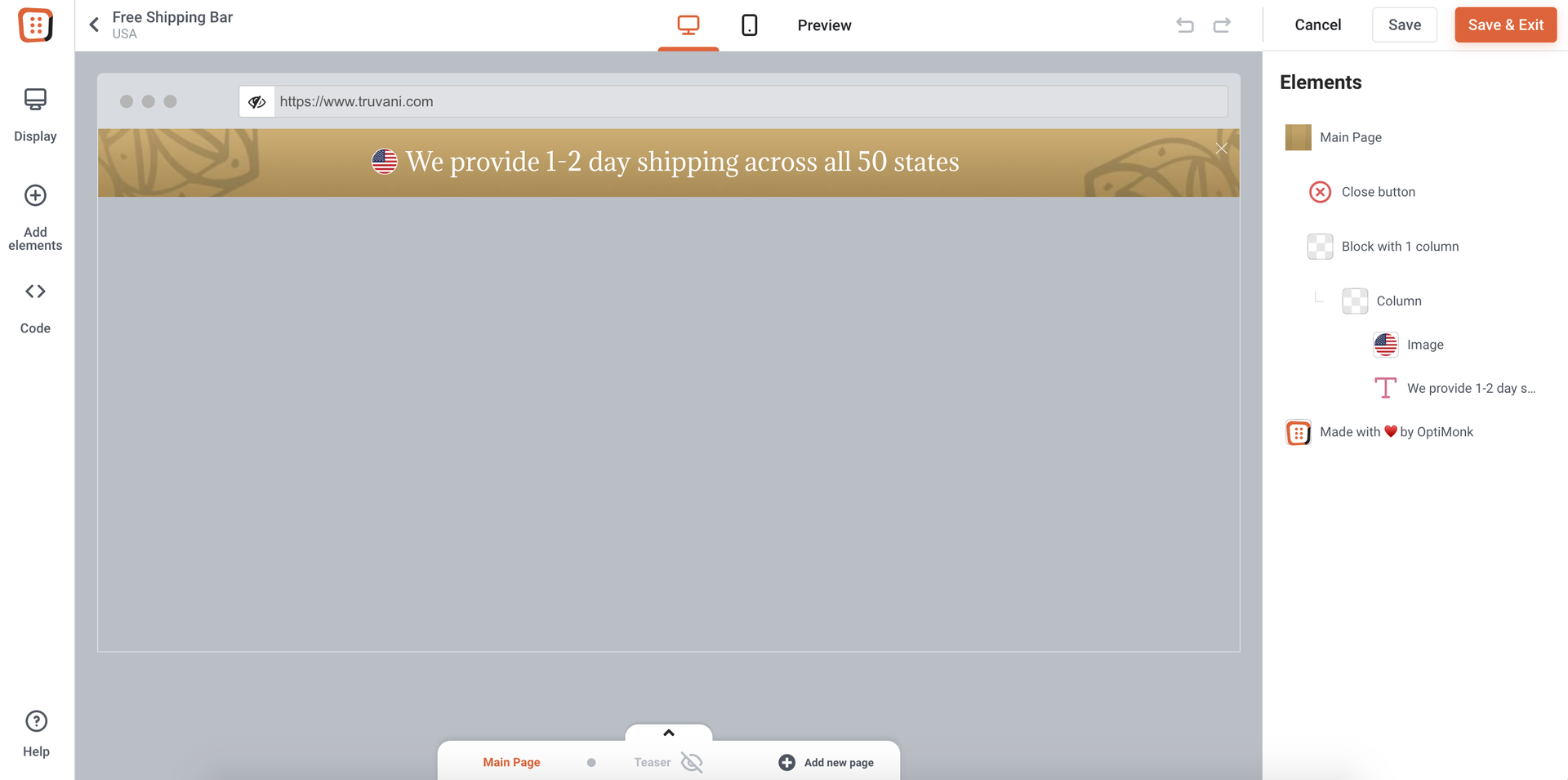
Display the country name, and the country flag to the headline of your sticky bars and also update the shipping information that is applicable for the chosen country/countries.
This is the variant for the USA:
This is the variant for Canada:

Step 4: Add new rules to your experience variants
Use country-based targeting to show the different variants to your user segments. If you want to learn more about country-based targeting, click here.

Step 5: Launch your campaign
This is what it will look like for visitors from the USA: