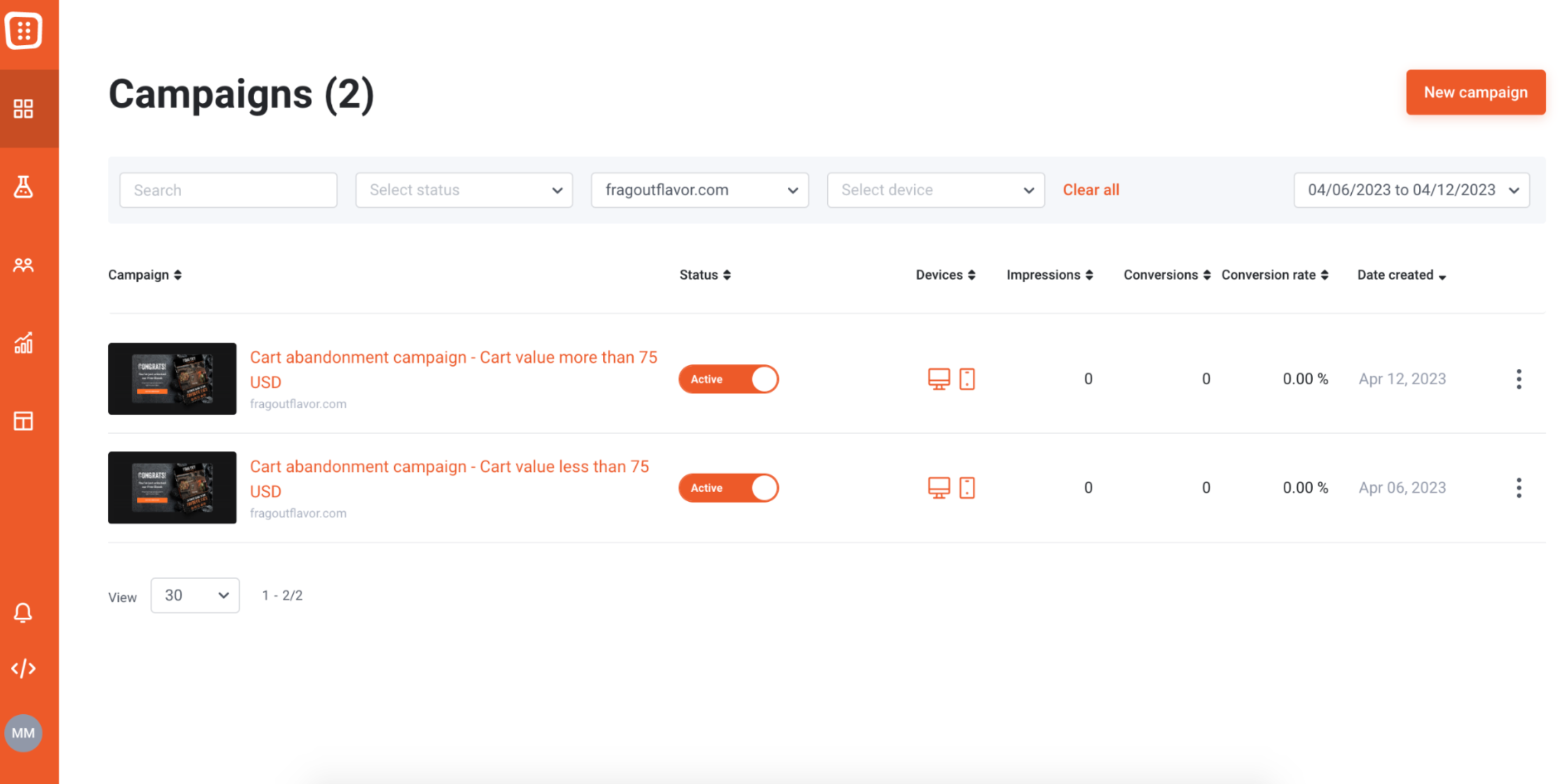
Expected results
Difficulty
Advanced
Industry
Ecommerce
Goals
Boost conversions, Stop cart abandonment
When to use it?
Are you tired of losing potential sales to cart abandonment? Personalizing your cart abandonment offers could be the game-changer you need!
A simple cart abandonment popup can save lots of abandoning visitors. But if you’d like to increase the effectiveness of your cart abandonment offers, try personalizing them based on the cart content or cart value.
For example, you could provide more substantial discounts to visitors with greater cart value, and lower discounts to visitors with lower cart value. This can raise conversion rates without impacting your revenue.
How to set it up?
Step 0: Background information
Let’s say that you would like to offer some free products to your cart abandoners. In this case it is wise to split your visitors into different groups based on the content/value of their carts and offer them products accordingly. You can offer a smaller gift to those who have less value in their carts and offer bigger gifts to those whose cart value is higher.
Step 1: Create your first campaign
Choose a regular cart abandonment campaign and fine tune it to your style. You can find all the correlated templates below.

Step 2: Create the offer for your first campaign
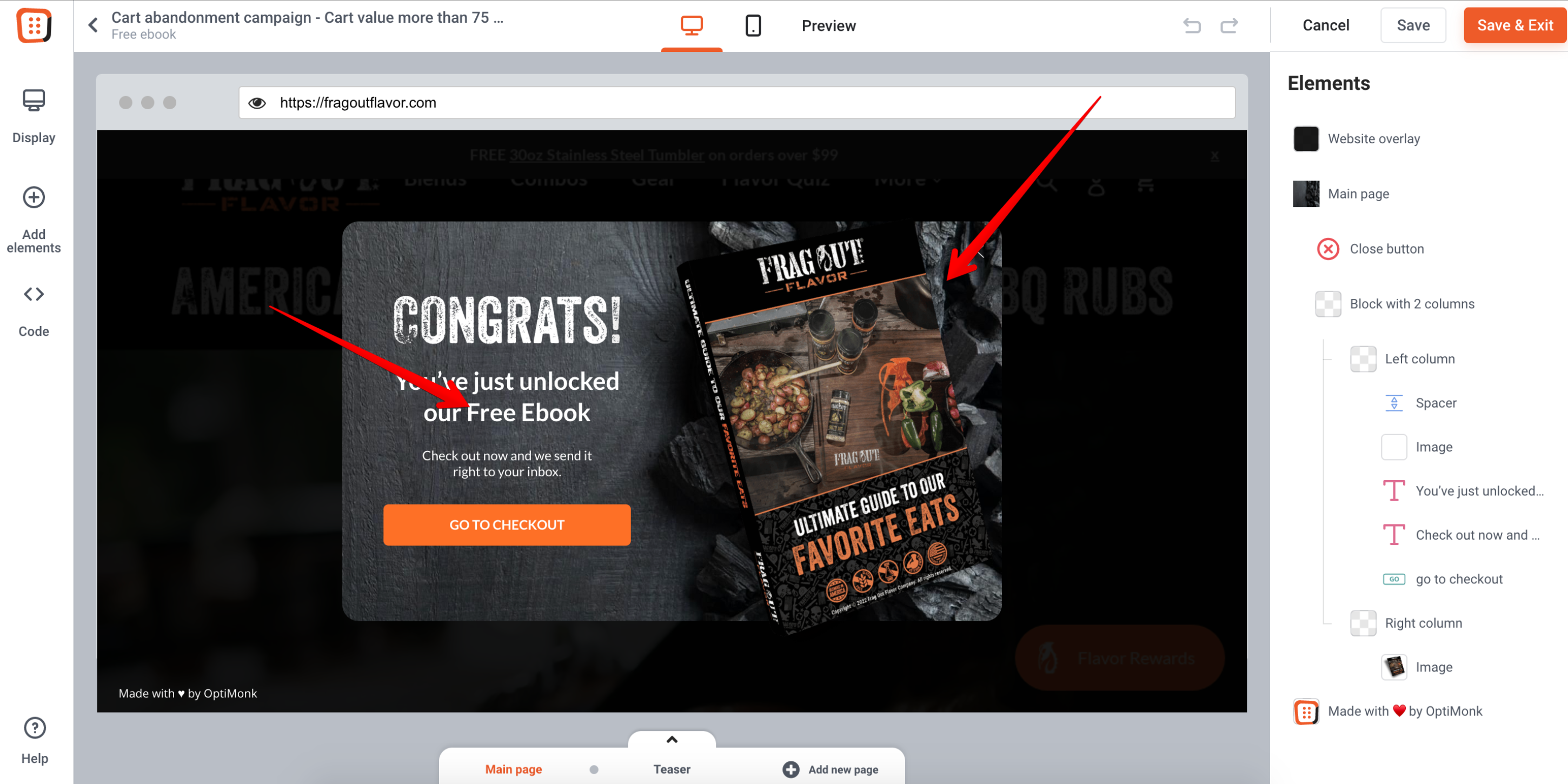
Put a photo to your campaign of the gift that you would like to promote to your first visitor group. You should also mention its name on the popup.

Step 3: Target your first campaign
Display this campaign to only those visitors who are not reaching the limit that you have defined earlier.

Step 4: Create your second campaign
Duplicate your original campaign, rename it, change the headline and photo on it.
Step 5: Target your second campaign
Display this campaign to only those visitors who are above the limit that you have defined earlier.

Step 6: Activate your campaigns