Expected results
Difficulty
Advanced
Industry
Ecommerce
Goals
ListBuilding
When to use it?
If you have customers from all over the world and you’re on the hunt for new ideas to improve their user experience, this tactic is perfect for you!
The idea itself is very simple: personalize your welcome popups with the country name for your international visitors. But executing it could be hard… unless you use our Smart Tags feature!
If your website has a considerable amount of international traffic, you can immediately create a more memorable user experience for these visitors by mentioning the name of their country in your welcome popups.
With Smart Tags, you can personalize your popup for each visitor on autopilot, meaning that you don’t need to create a separate message for each country.
How to set it up?
Step 0: Check the top locations where your visitors are coming from
Go to your Google Analytics account, and go to Audience / Geo / Location so that you will see where your visitors are coming from. Choose as many countries as many campaign variants you would like to create. To demonstrate this tactic, we will go on with Canada (default campaign) and Denmark (personalized campaign).

Step 1: Create a regular welcome popup
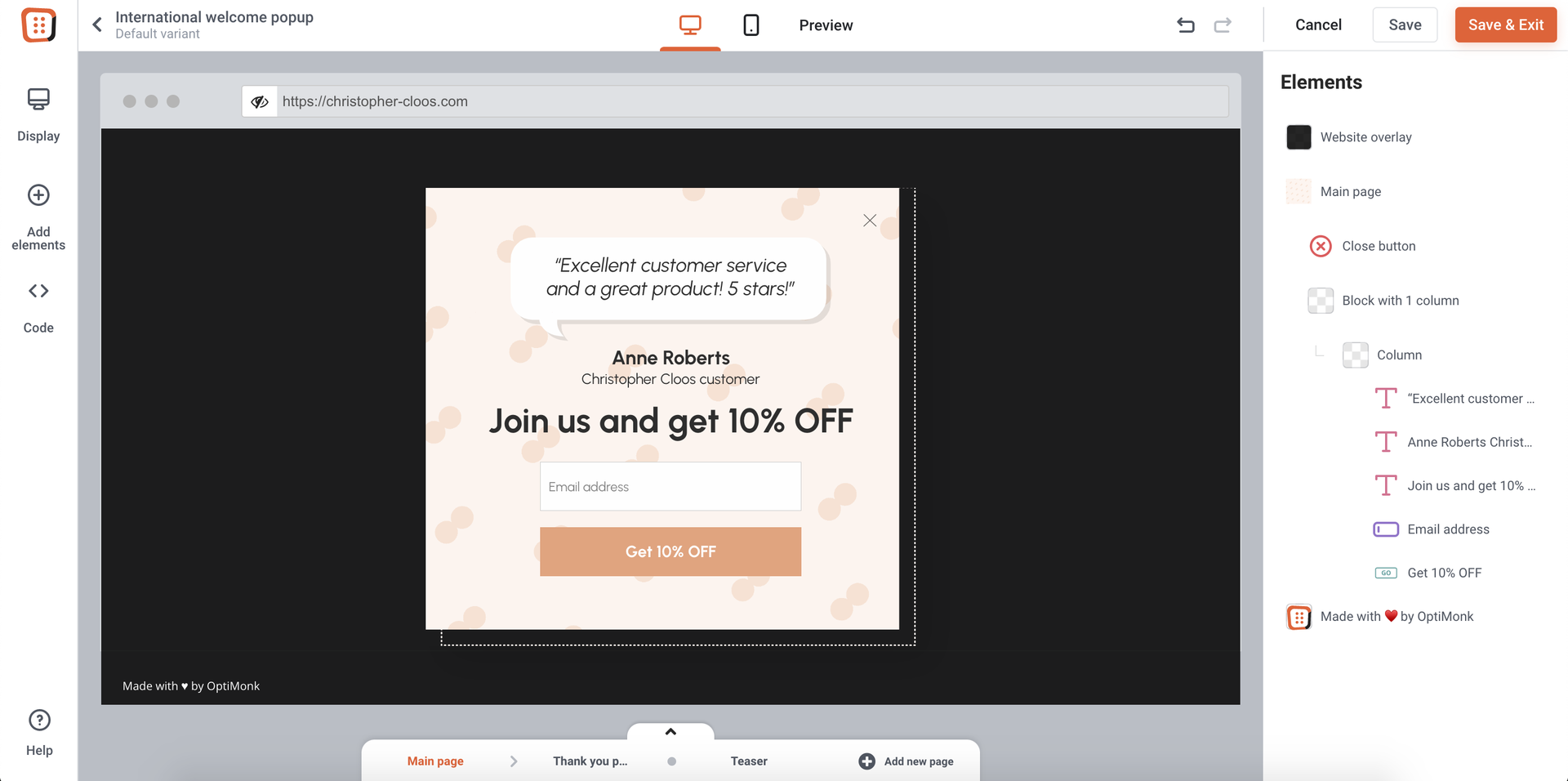
If you don’t have an existing campaign you want to personalize, below you can get a list of welcome popup templates and create a new one. Fine-tune it to your style, this will be your default variant.
Step 2: Create a new Personalized Experience
If you want to learn more about Personalized Experiences, click here.

Add a new variant to Experience B and C. Your original campaign is in Experience A.

Step 3: Modify your newly created campaign variants
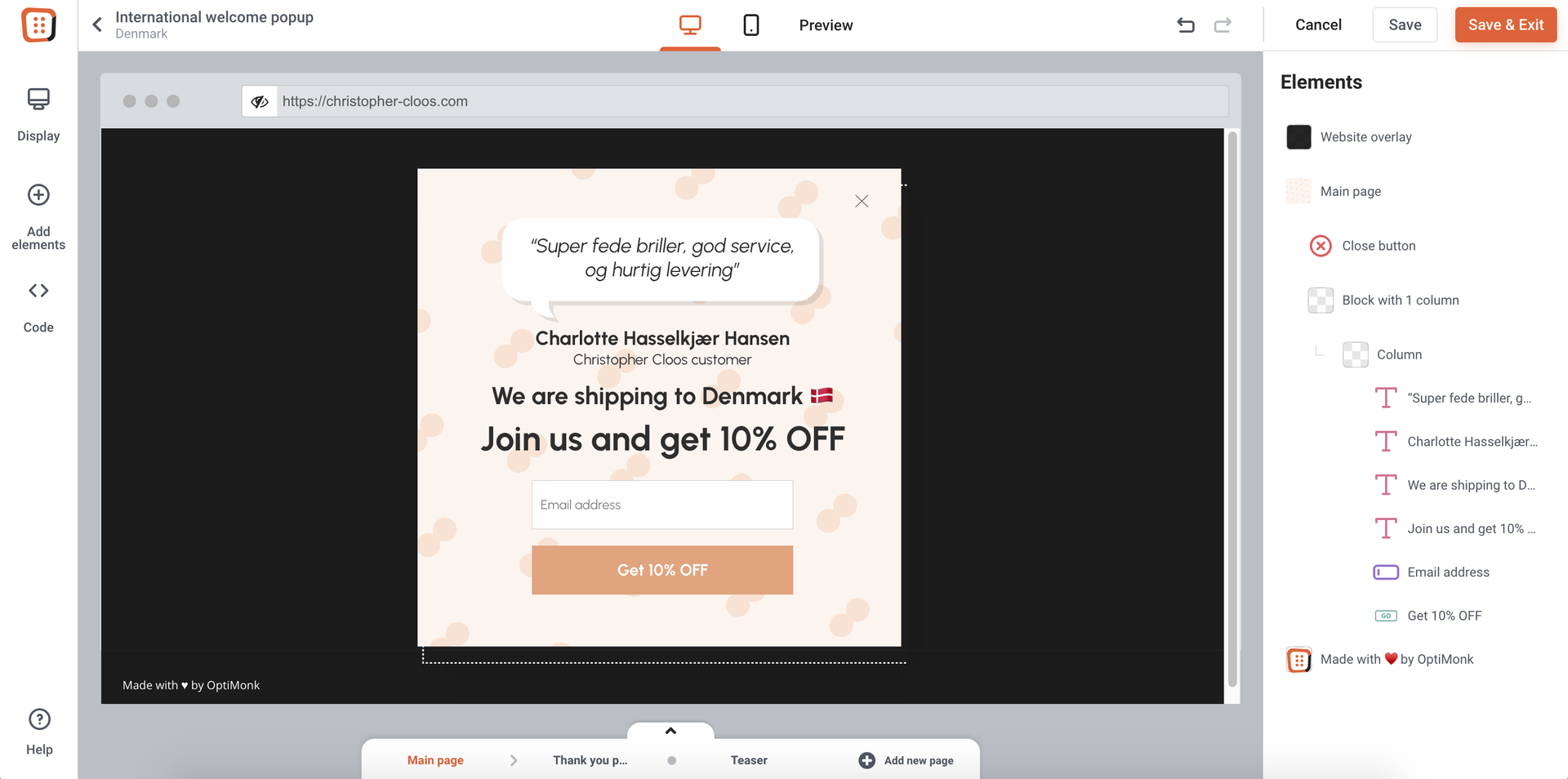
We recommend to display the country name in the headline plus if you want to create a super personalized experience for your visitor, show a testimonial in the visitors’ mother tongue.
This will be the variant shown for Canadian visitors:

This will be the variant shown for Danish visitors:
Step 4: Add a new rule to your experience variants
Use country-based targeting to show the different variants to your different user segments. If you want to learn more about country-based targeting, click here.

Step 5: Launch your campaign
This is what it will look like for visitors from Denmark: